| Your situation | Jump to |
|---|---|
| I need to find a specific word in a PDF | Search a text PDF |
| I need to search many PDFs or a whole folder at once | Search multiple PDFs |
| I searched but Ctrl+F found nothing | Search a scanned PDF |
| I don’t know the exact keywords to search for | Semantic PDF search |
| I want to ask questions about my PDFs and get answers | AI + PDF |
| I want quick tips and tricks | PDF search tips |
How to Search a PDF for a Specific Word
Quick answer: The simplest way to search a PDF is to press Ctrl+F (Windows) or Cmd+F (Mac). The F stands for Find. This works in Chrome, Edge, Firefox, Safari, Preview, Adobe Acrobat Reader, and virtually every other PDF tool.
Here’s the full process:
- Open the PDF in any reader or browser
- Press Ctrl+F (or Cmd+F on Mac)
- Type the word or phrase you’re looking for
- Press Enter to jump to the first match
- Press Enter again (or Ctrl+G) to jump to the next one
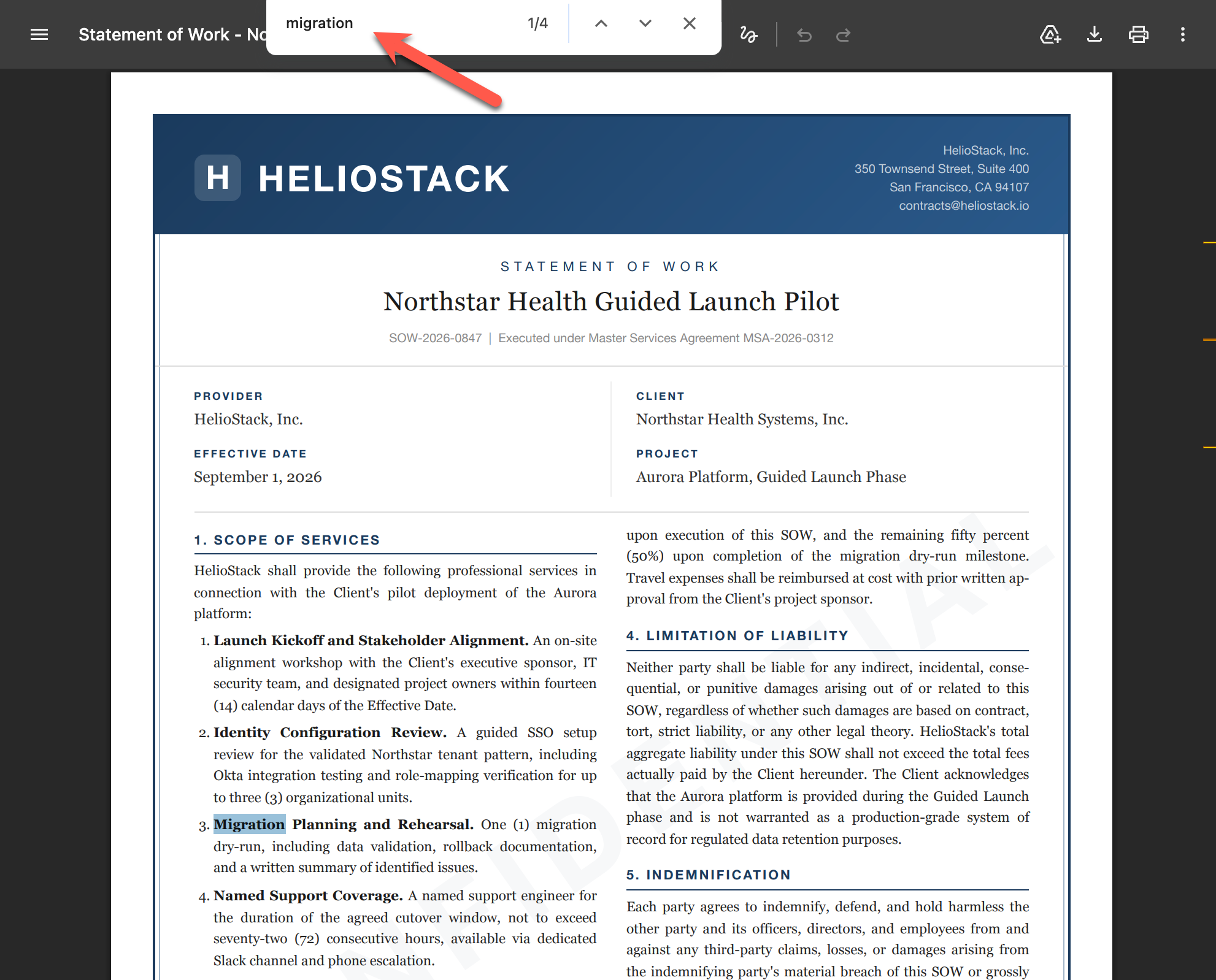 Press Ctrl+F, type your keyword, and the viewer highlights every match. Here it found “migration” 4 times across the document.
How to Search Multiple PDFs at Once
Ctrl+F only looks inside the file you have open. When the answer could be in any of 50 or 300 PDFs, you need a tool that searches the whole folder and tells you which files match.
To compare the usual options, we built one test folder: a fictional company’s vendor records, 303 files in all (100 contracts, 140 invoices, 60 sets of meeting minutes, two scanned PDFs and one Word file). The vendor name “Brightwater Logistics” appears in 15 of them, and one of those 15 is a scanned amendment with no text layer. Every test ran on the same Mac mini (M4, macOS 26.6).
Adobe Acrobat Reader: Advanced Search (free)
Acrobat Reader can search every PDF in a folder. It has to be the desktop app, not Acrobat in a browser:
- Press Ctrl+F (Mac: Cmd+F) to open the Find toolbar, click the three dots and choose Advanced Search.
- Select All PDF Documents in and pick the folder.
- Type the word or name and click Search.
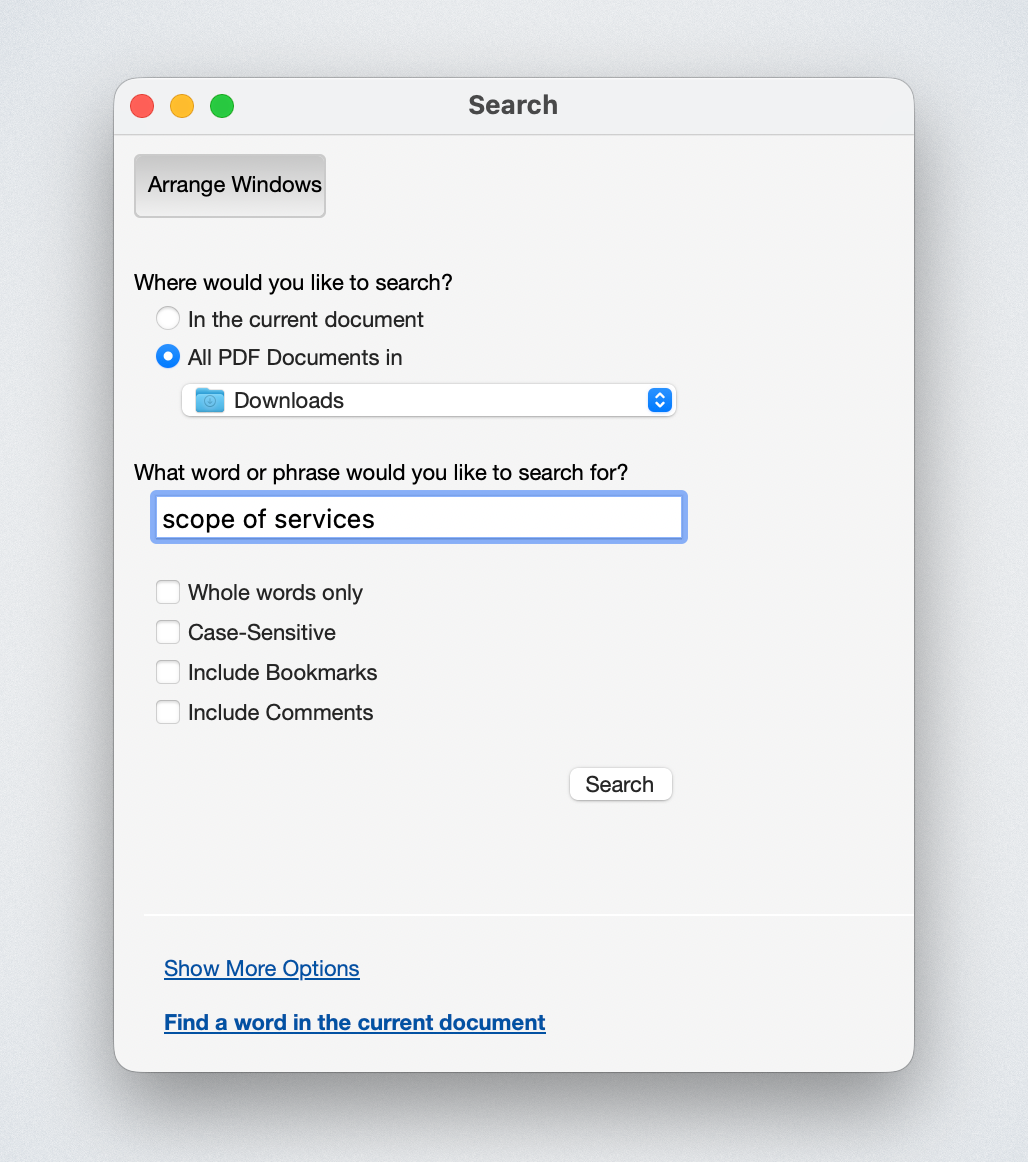 Adobe Acrobat’s Advanced Search lets you search an entire folder of PDFs
Results are grouped by file, with a few words of context around each match. Two limits are worth knowing. Without an index, Acrobat runs a full-text search of every PDF each time you search; building an index (a “catalog”) to speed that up needs Acrobat Pro, as Adobe’s help page explains. And like Ctrl+F, it searches the text in the PDF, so a scan without a text layer has nothing to match. We couldn’t install Acrobat on our test Mac, so these notes come from Adobe’s documentation, not from our own timing.
Mac: Spotlight and Finder
Spotlight reads the text inside PDFs by default. Press Cmd+Space and type your words. To stay inside one folder, open it in Finder, press Cmd+F and click the folder’s name next to “Search”.
In our test, Spotlight listed 14 of the 15 files in about a tenth of a second. The one it missed was the scanned amendment, because there’s no text in it for Spotlight to read. It also shows file names only, so you still open each file and press Cmd+F to find the passage.
Windows: File Explorer
Windows File Explorer can search PDF contents if a PDF iFilter is installed and indexing is configured correctly. Windows has a built-in PDF filter, and Adobe bundles one with Acrobat Reader. In practice, this breaks frequently on Windows 11 and most users never get it working reliably. (Our test machine was a Mac, so Explorer isn’t in our numbers.)
| Method | Searches PDF text | Finds text in scans | Shows the passage | Found in our test (of 15) |
|---|---|---|---|---|
| Adobe Advanced Search | ✅ | ❌ | ✅ | Not tested |
| Mac Spotlight | ✅ | ❌ | ❌¹ | 14, in about 0.1 s |
| Windows Explorer | ⚠️² | ❌ | ❌ | Not tested |
| Gety | ✅ | ✅ | ✅ | 15, the scan first |
¹ File names only. ² Only with a PDF iFilter installed and indexing set up. “Not tested”: our test Mac had no Acrobat, and Explorer runs only on Windows.
Faster: Index the Folder Once
Acrobat’s Advanced Search reads the files again for every search. An indexing tool reads them once, keeps an index, and answers each search from it. That’s why Spotlight was fast. Gety works the same way, and it also reads the text in scanned pages while it indexes.
On the same 303-file folder:
- Indexing: about 10 seconds after we added the folder, all of it was searchable, scans included. After that, searches come back in under a second. A real Documents folder with thousands of files takes a few minutes the first time. From then on, Gety picks up new and changed files in the background.
- Searching: “Brightwater Logistics” returned all 15 files, and the scanned amendment was at the top.
- Scans included: that amendment is the file Spotlight missed. “Riverside”, a word that only appears in the scan, found it too.
- Mixed formats: the Word file with our vendor notes came second, in the same list as the PDFs. Gety searches PDF, Word, PowerPoint, TXT, Markdown and HTML in one query.
- Preview with highlights: click a result and the page opens in the preview with the match marked, so you can check it without opening the file.


("Client") and Brightwater Logistics ("Vendor") and changes the Agreement as follows. 1. Clause 1 (Scope of Services) is extended to include Saturday…

Brightwater Logistics: late Monday deliveries in July and August. Formal notice sent. Amendment 2 adds Saturday runs; check the new fee in the next invoice.…
("Client") and Brightwater Logistics ("Vendor"). 1. Scope of Services Vendor shall provide routine maintenance,…
("Client") and Brightwater Logistics ("Vendor"). 1. Scope of Services Vendor shall provide weekly pickup and delivery of inventory between the Eastfield…
This Amendment is made between Eastfield Home Goods Ltd. ("Client") and Brightwater Logistics ("Vendor") and changes the Agreement as follows.
1. Clause 1 (Scope of Services) is extended to include Saturday deliveries to the Riverside store from 1 September 2026.
2. Clause 3 (Fees) is amended: the monthly fee increases to $5,950. Saturday deliveries are billed at $180 per trip.
3. Clause 4 (Termination) is amended: termination notice for convenience is reduced from 60 to 30 days.
All other terms of the Agreement remain unchanged.
Signed for Client: Dana Whitfield, Operations Manager Date: 18 August 2026
Signed for Vendor: Brightwater Logistics, authorised signatory Date: 19 August 2026
The limits: Gety runs on Windows and Mac, not on phones, and the first index of a large folder takes a few minutes. For one PDF that’s already open, Ctrl+F is still the quickest way.
Why Can’t I Search This PDF? (It’s Probably a Scanned PDF)
You hit Ctrl+F, typed your keyword, and got 0 results. But you can clearly see the word right there on the page. What’s going on?
The most common reason: your PDF is a scanned image, not text.
When someone scans a paper document, the scanner photographs each page. The result looks like text to your eyes, but to your computer it’s just a picture. There’s no text data for Ctrl+F to search through.
Here’s how to tell: they look almost identical, but the underlying data is completely different.
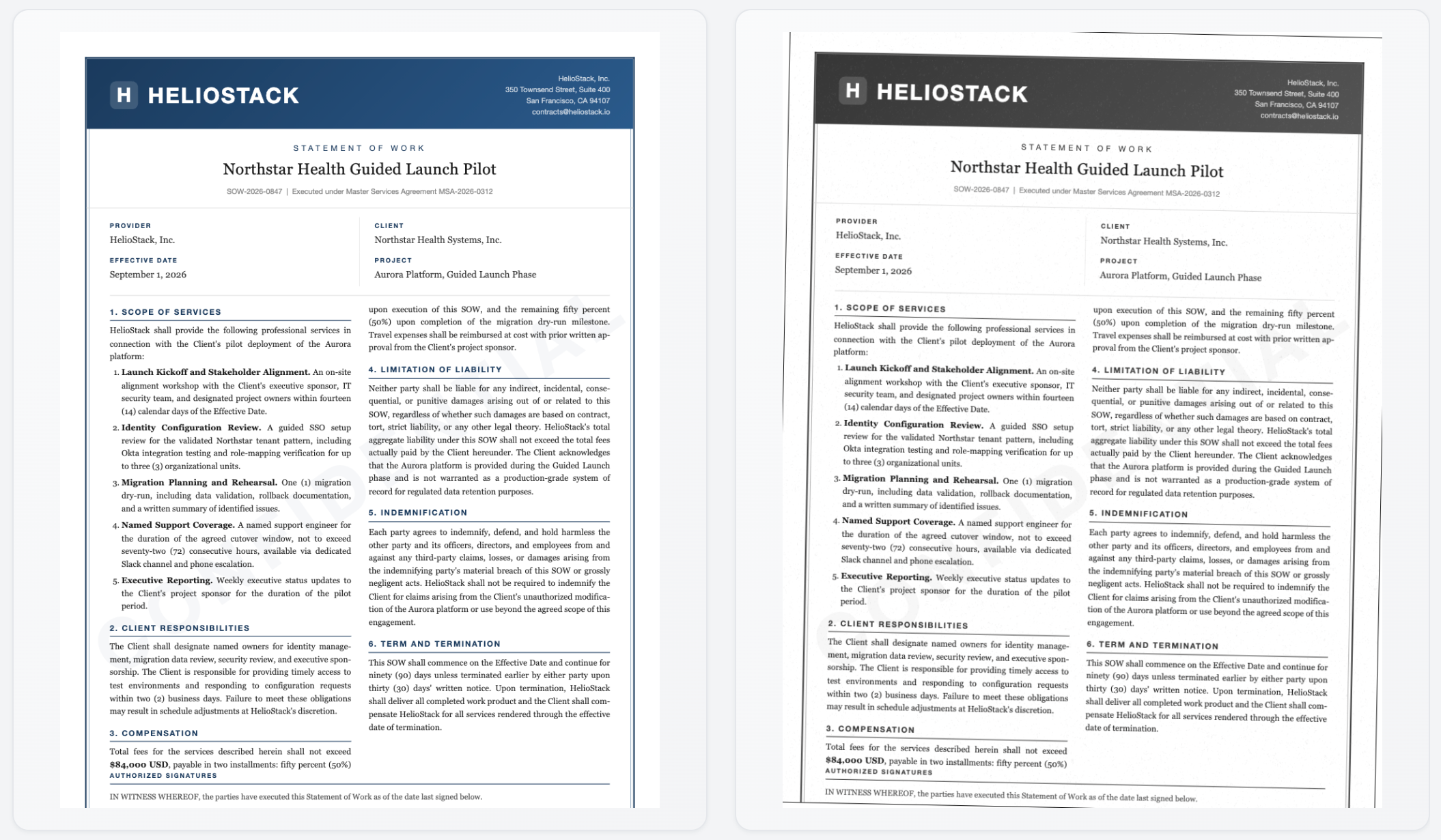 Left: text PDF (searchable). Right: scanned PDF (just an image). They look the same, but Ctrl+F only works on the left one.
Quick test: try selecting text with your mouse. If you can highlight individual words, the PDF has a text layer and Ctrl+F should work. If the whole page selects as one big block (or nothing selects at all), you’re looking at a scanned image.
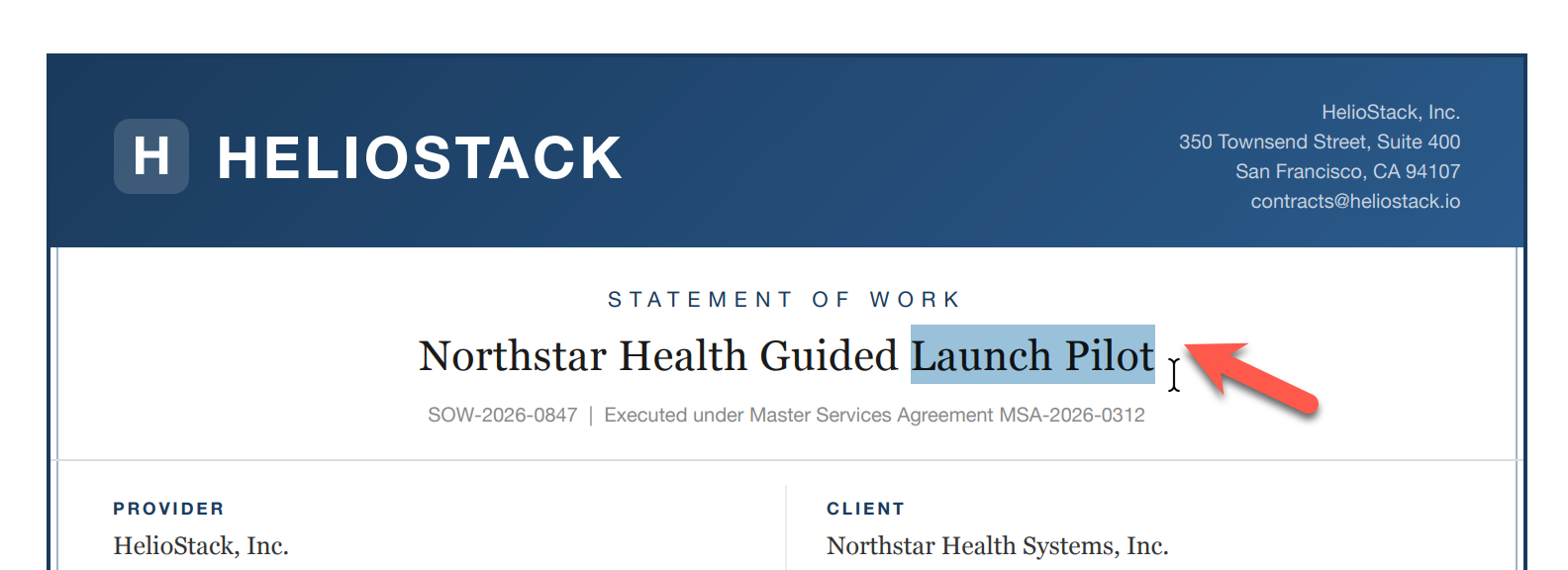 If you can drag to select individual words like this, your PDF is searchable. If nothing highlights (or the entire page selects as one block), it’s a scan.
How to Make a Scanned PDF Searchable
The fix is OCR (Optical Character Recognition), software that reads the image and converts visible characters into searchable text.
If you need to convert the file (to share it, archive it, or edit the text), you can run OCR manually:
- Adobe Acrobat (Standard or Pro) can OCR one file at a time via Scan & OCR > Enhance Scans. Paid, from $12.99/mo.
- Online OCR tools like iLovePDF or OCR2Edit let you upload a scanned PDF and get a searchable version back. Free for basic use, but your files go to their server.
- OCRmyPDF is an open-source command-line tool for batch OCR. Free, but requires some technical setup.
If you just need to search it, you can skip the conversion step entirely. Gety runs OCR automatically when it indexes your files. You don’t convert anything, you don’t upload anything. You just search, and scanned PDFs show up in the results alongside regular ones.
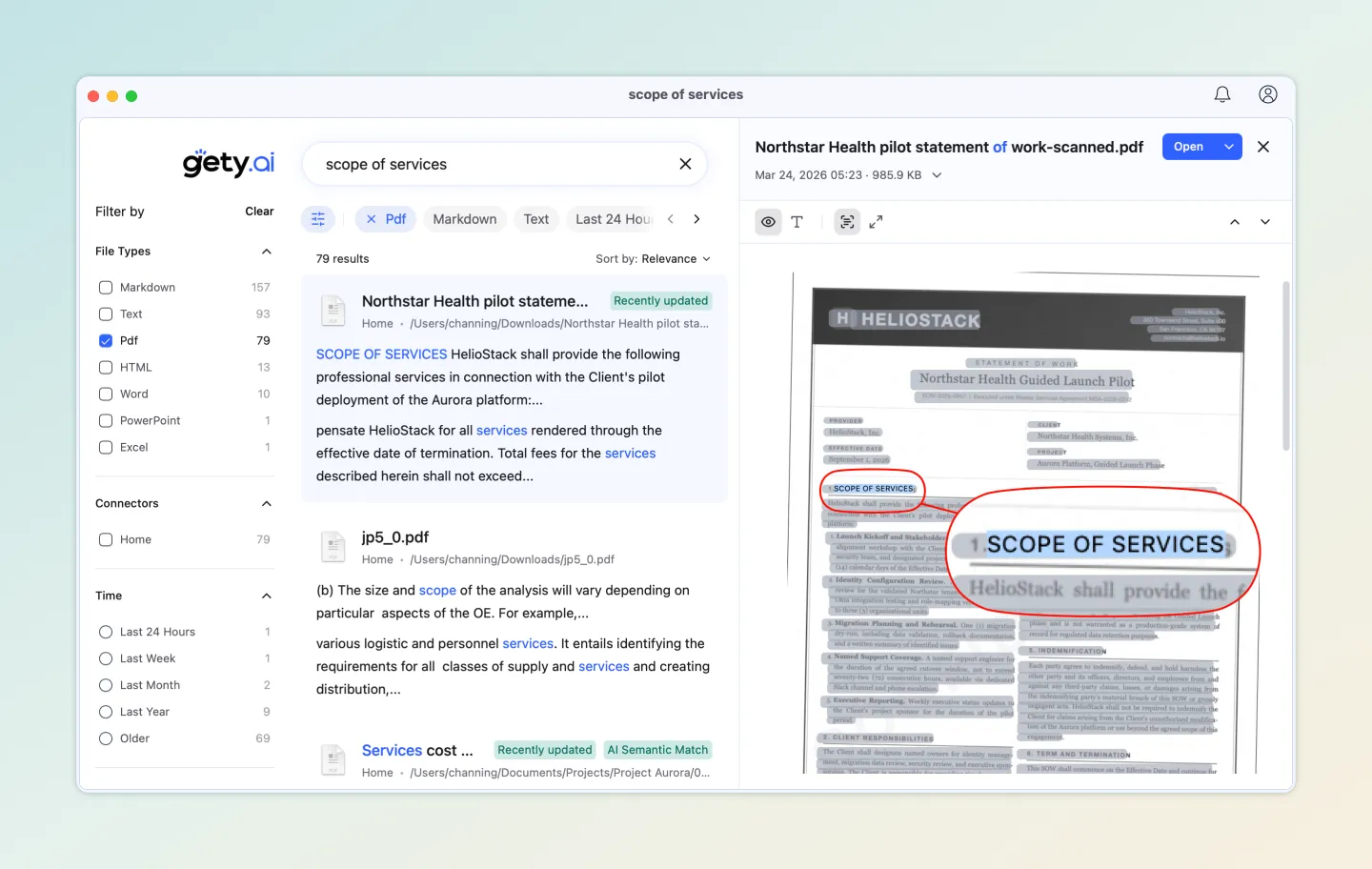 Searching “scope of services” in a scanned contract. Gety’s OCR reads the image and finds the text. The preview shows the original scanned page with matches circled.
Other Reasons Ctrl+F Might Fail
Not all “unsearchable” PDFs are scanned. Less common causes:
- Custom font encoding (common in government PDFs): text looks normal but the underlying data is garbled. OCR fixes this too.
- Password restrictions: the PDF owner blocked text search. Contact whoever sent you the file.
- Vectorized text: design software (Illustrator, InDesign) converted letters to shapes. OCR is the only fix.
- PDF reader bug: try opening the file in a different app. If search works there, it’s a reader issue, not a file issue.
When You Don’t Know the Right Keywords
You’re searching a contract for anything about liability. But the contract never uses the word “liability.” It says “indemnification,” “hold harmless,” and “liquidated damages.” Ctrl+F won’t help because you’d have to guess every synonym the author used.
Gety has a semantic search mode that matches by meaning, not exact words. Search “service contract” and it finds a file titled “statement of work.” Search “liability” and it surfaces paragraphs about “indemnification” and “hold harmless provisions.”
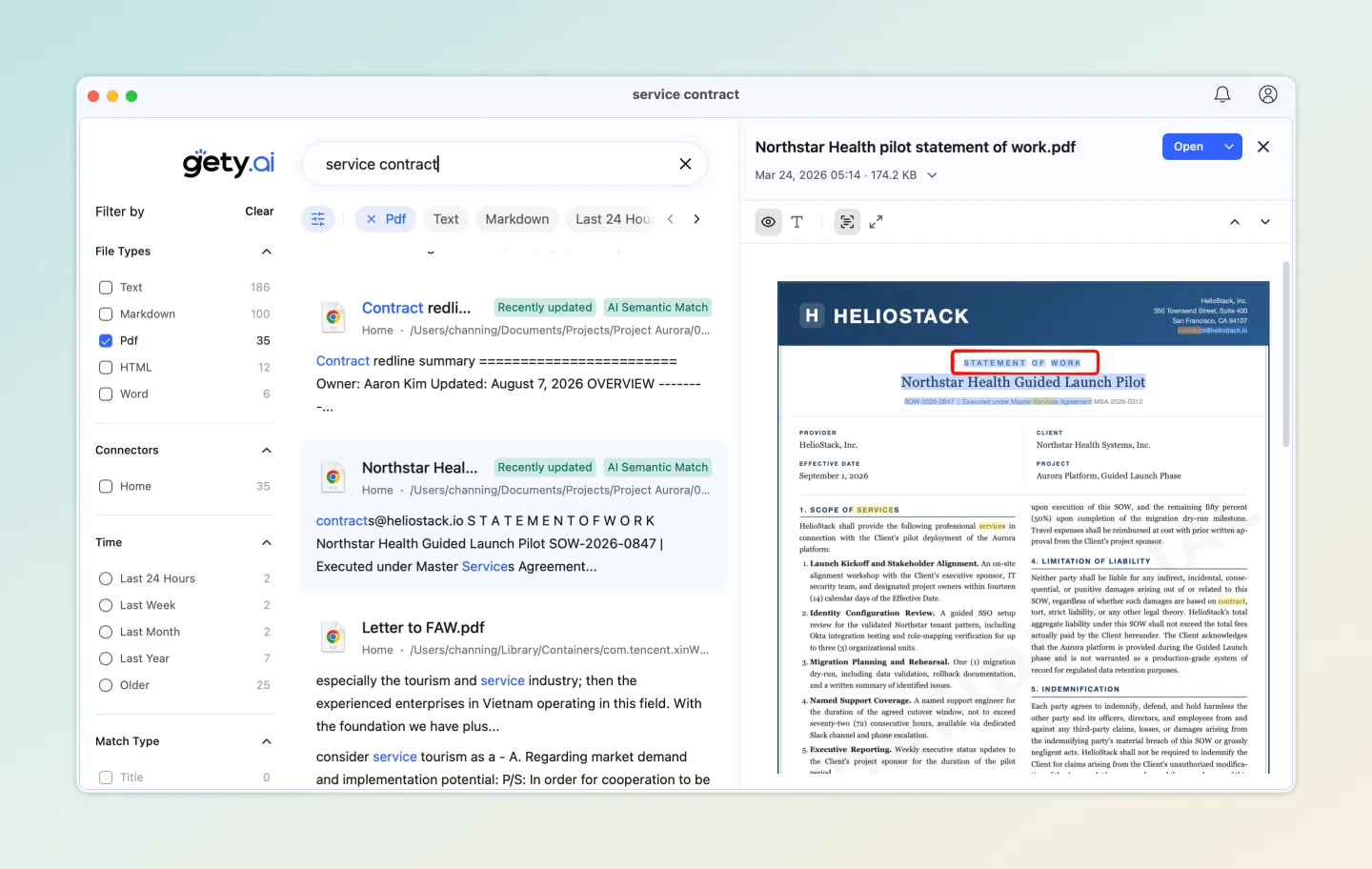 Searching “service contract” finds a “statement of work” because semantic search matches by meaning, not exact keywords
This works for single files and across your entire collection. The semantic index is built locally alongside the keyword index, so there’s nothing extra to set up.
How to Let AI Read and Work With Your PDFs
Everything above helps you find information in PDFs. But finding is only half the job. You still have to read the relevant sections, extract what you need, and put it together yourself. What if AI could do that part too?
The problem is that AI tools like Claude and ChatGPT can’t see your local files. You’d have to upload each PDF manually, which is slow and not great for sensitive documents (legal, financial, medical).
Gety connects your local files to AI tools through MCP (Model Context Protocol). Your files stay on your computer. The AI searches through them via Gety, reads the relevant passages, and works with the content directly.
Here’s what that looks like in practice:
Ask questions, get answers. Instead of searching a keyword and reading through matches yourself, you can ask “what are the payment terms in this contract?” and get a direct answer with the source paragraph cited.
Let AI do the work. We gave Claude Cowork a single prompt. It searched 8 PDFs scattered across the computer (risk assessments, budget reports, customer status updates), extracted the relevant data, and generated a 7-slide executive presentation with real numbers. No manual searching, no copy-pasting.
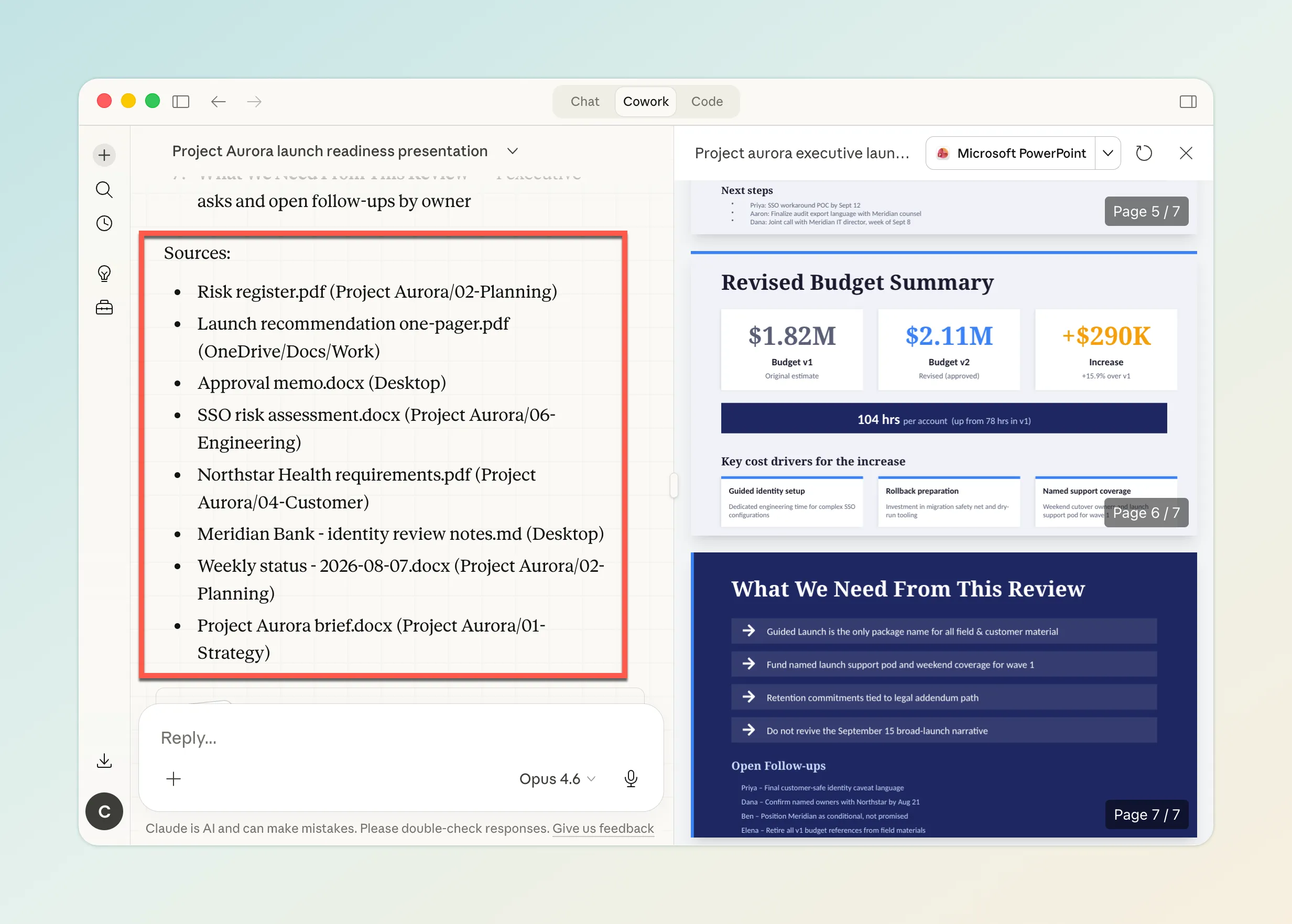 One prompt, 8 source documents from across the computer, 7 finished slides. Full walkthrough here.
PDF Search Tips Most People Don’t Know
A few tricks that work across most PDF readers:
Ctrl+F only matches one term at a time. If you need to find pages mentioning both “payment” and “deadline” (not next to each other), or find synonyms like “cancellation” when you searched “termination,” Ctrl+F can’t help. See searching multiple PDFs for multi-keyword search and semantic search for meaning-based matching.
Partial word matching is on by default. Search “contract” and most readers will also highlight “contractor,” “contractual,” and “subcontract.” If you only want exact matches, check “Whole Words Only” in Adobe Acrobat’s Advanced Search.
Search the web for PDFs with Google. Add filetype:pdf to any Google search to only show PDF results. For example: filetype:pdf annual report 2025 finds PDF annual reports across the web.
Enable PDF content search on Windows. By default, Windows File Explorer only searches file names. To search inside PDFs:
- Open Settings > Search > Searching Windows
- Under “Find My Files,” select Enhanced
- Make sure Adobe Acrobat Reader is installed (it includes a PDF iFilter)
This is unreliable on Windows 11 (it breaks after updates), but when it works, you can search PDF text directly from File Explorer.
Mac Spotlight already searches inside PDFs. No setup needed. Press Cmd+Space, type your keyword, and Spotlight shows matching PDF files. The limitation: it shows filenames, not the matching text, so you still have to open the file to find the exact passage.
FAQ
Can I search a password-protected PDF?
It depends on the protection level. If the PDF only requires a password to open, you can search normally once you’ve entered the password. If the owner set restrictions that specifically block text selection and search, you’ll need to contact them for an unrestricted copy.
How do I search for keywords in multiple Word documents?
The same methods that work for PDFs work for Word files. Adobe Advanced Search handles PDFs only, but Mac Spotlight and Windows File Explorer search Word docs by default. Gety searches PDF, Word, PowerPoint, and other formats in a single query.
Does Mac Spotlight search inside PDFs?
Yes, by default. Spotlight indexes the text content of PDFs automatically. It shows which files contain your keyword, but not the matching passage. You’ll need to open the file and use Cmd+F to find the exact location.
What’s the best free PDF search tool?
For single-file search, your browser (Chrome, Edge) or Preview (Mac) is all you need. For multi-file search, Mac Spotlight works well for basic needs. For scanned PDFs or cross-format search, Gety is free to start.
How do I search for a specific PDF on Google?
Use Google’s filetype: operator. Type filetype:pdf followed by your keywords. Example: filetype:pdf "climate change" 2025 report returns only PDF files matching those terms.
Wrapping Up
| What you need | Best method |
|---|---|
| Search one text PDF | Ctrl+F / Cmd+F (free, works everywhere) |
| Search a scanned PDF | OCR first, then Ctrl+F. Or use Gety (automatic OCR, no conversion needed) |
| Search across many PDFs | Adobe Advanced Search (free, reads every file each time), Spotlight on Mac (fast, misses scans) or Gety (indexed, includes scans) |
| Search by meaning, not exact keywords | Gety semantic search (local, no upload) |
| Ask questions about your PDFs | Gety + AI tools via MCP |
| Find PDFs on the web | Google with filetype:pdf |
Most people just need Ctrl+F, and that’s fine. If you regularly deal with scanned documents or large collections of PDFs, a search tool that handles OCR and indexing saves real time. Gety is free to start, needs no account for local search, and indexing and search run 100% on your own computer.